Configuring a Split Ortholinear Keyboard for Plover Stenography
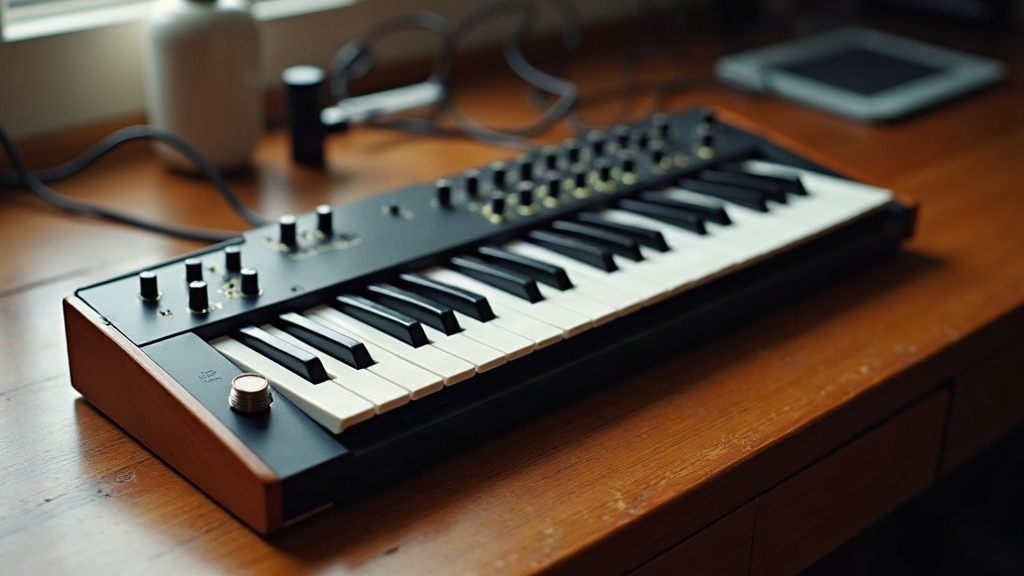
Setting up a split ortholinear mechanical keyboard for Plover and amateur stenography comes down to three things: your keymap, your firmware, and how well the board handles chords. Unlike touch typing, where you hit one key at a time, stenography asks you to slam down several keys at once (a “stroke”) to spit out entire words or phrases. That means your board needs n-key rollover, a steno-friendly layout, and software that actually plays nice with Plover’s serial or keyboard-input protocol. Skip any of these and you’ll spend more time debugging dropped keys than practicing strokes.
Why Split Ortholinear Boards Work Well for Steno
Split ortholinear keyboards (think Kyria, Corne, or Ferris) have become something of a default choice in the Plover community. A few reasons why:
- Ortholinear grids line keys up in straight columns, which maps closely to the finger positions stenographers already learn on dedicated steno machines.
- Split halves let your hands sit at a natural, shoulder-width angle, which matters a lot once you’re grinding through long chording sessions and your wrists start complaining.
- Low profile, short travel switches make it easier to land simultaneous presses cleanly, instead of fumbling three keys that register half a beat apart.
- Full NKRO (n-key rollover), standard on most QMK/ZMK boards, isn’t optional here. A single stroke can involve 8 to 10 keys pressed together, and a board that can’t report all of them at once is simply unusable for steno.
Step 1: Confirm NKRO Is Enabled
Before touching anything else, make sure your keyboard actually reports every simultaneous keypress correctly. This is the single most common failure point for people migrating from a regular typing setup.
- On QMK, set
NKRO_ENABLE = yesin yourrules.mk, then reflash the firmware. - On ZMK, check that your board’s
.conffile includesCONFIG_ZMK_USB_HID_HOST_SIDE=yand that NKRO reporting is turned on (recent ZMK builds have gotten noticeably better at steno-specific support). - Run an online NKRO tester and hold down 8+ keys at once. If any of them get dropped, Plover will misread your strokes, full stop.
Step 2: Choose a Steno Layout Mapping
Plover expects a particular steno key layout, usually based on the Ward Stone Ireland (English Stenotype) arrangement. From here you’ve got two paths.
Option A: Standard Keyboard Layout in Plover
Use Plover’s built-in “Keyboard” machine type and map your physical keys to the standard QWERTY-based steno layout. This is what most beginners start with:
Left hand: S T P H * F P L T D Right hand: * R B G S Z Vowels: A O E U
No firmware changes needed for this route, just remap your ortholinear board’s keycaps (physically, or through your QMK keymap) so they line up with these letters in Plover’s keyboard settings.
Option B: Dedicated Steno Firmware Protocol
Plenty of split boards support QMK’s or ZMK’s built-in steno protocol, either GeminiPR or TX Bolt, which pushes raw steno data over a virtual serial port instead of sending individual keystrokes like a regular keyboard would.
- In QMK: turn on
STENO_ENABLE = yesand setSTENO_PROTOCOLtogeminipr. - In Plover: pick “Gemini PR” as the machine type and select the right serial port.
This route tends to be more reliable once you’re chording fast, mainly because it sidesteps the usual USB HID keyboard reporting limits entirely rather than working around them.
Step 3: Build a Custom Keymap Layer
Most people set aside one full layer of their keymap just for steno. A sensible approach looks like this:
- Assign a layer-toggle key (usually somewhere on the thumb cluster) to flip into “Steno Mode.”
- Spread the 23 steno keys across your ortholinear matrix, keeping the hand symmetry as close to the original layout as you reasonably can.
- Leave your QWERTY layer untouched for everyday computer use. You’ll be jumping between the two constantly.
Boards with 3 to 5 thumb keys work especially well here, since stenographers need fast access to the number bar and the asterisk key without stretching their fingers across the board.
Step 4: Test and Calibrate in Plover
Once your firmware and Plover’s machine settings line up, run through this checklist:
- Open Plover and load a basic dictionary (the default “main.json” is fine while you’re starting out).
- Use Plover’s stroke display to check that every keypress is registering as the correct steno letter.
- Practice with Plover’s paper tape feature, it’s the easiest way to spot misfires or dropped keys before they become bad habits.
- If you notice “chord splitting,” where one stroke gets read as two separate ones instead of a single simultaneous press, tweak your n-key rollover and debounce settings until it stops.
Common Problems and Fixes
- Ghosting or missed keys: usually points to a wiring or diode problem on DIY boards. Go check your matrix first.
- Strokes registering out of order: adjust your debounce time in firmware. Set it too aggressive and it’ll delay legitimate simultaneous presses, which feels exactly like a hardware fault even though it isn’t.
- Layer conflicts: double-check your steno layer doesn’t overlap with keycodes tied to OS-level modifier shortcuts, or you’ll get weird interference you can’t explain.
Conclusion
A split ortholinear keyboard is genuinely one of the best tools for learning Plover-based amateur stenography, as long as you get NKRO configured properly, pick between keyboard-emulation and native steno protocol, and carve out a clean dedicated layer for chording. If you’re new to this, start with the simpler keyboard-layout method. Once you’re comfortable, migrate to GeminiPR firmware, it gives you smoother and more accurate stroke recognition as your words-per-minute climbs.