Best Ergonomic Mechanical Keyboards for CAD Left-Handed Macropads
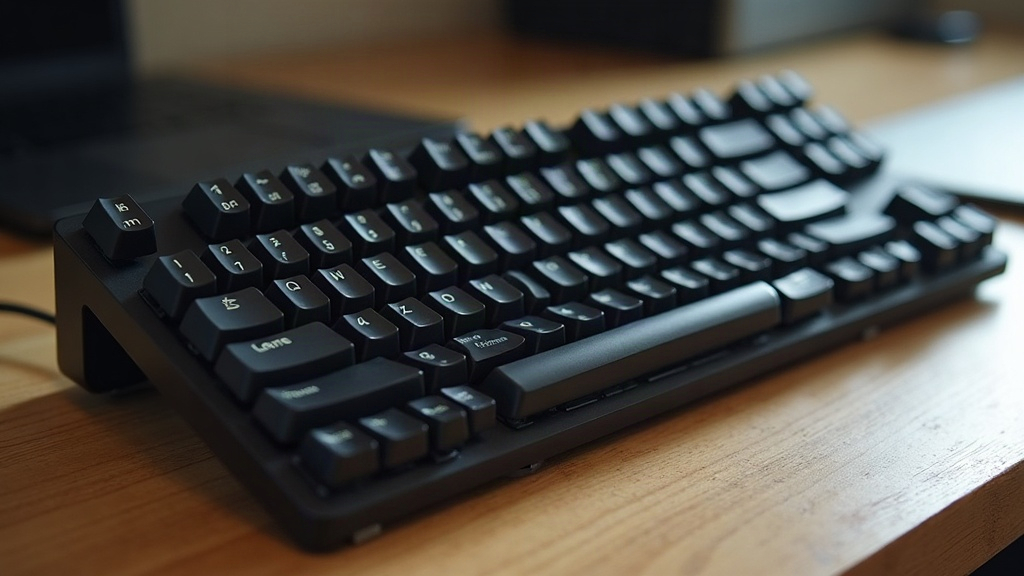
CAD designers spend their days orbiting models, zooming into tiny fillets, and firing off keyboard shortcuts while the mouse hand does most of the steering. If you’re right-handed on the mouse, a left-handed macropad paired with an ergonomic mechanical keyboard changes your whole workflow. Less wrist strain, faster repetitive commands, smoother sessions in SolidWorks, Fusion 360, AutoCAD, or Rhino. Here’s a rundown of combinations that actually work for CAD professionals who want comfort without giving up precision.
Why CAD Designers Need a Left-Handed Macropad
CAD software leans hard on modifier combos: Ctrl+Z, Alt+drag, Shift+select. On a standard keyboard, your left hand ends up twisting across the board while your right hand stays glued to the mouse. Do that for six hours straight and your wrist will let you know about it. A dedicated left-handed macropad fixes this by:
- Putting frequently used commands (extrude, fillet, rotate view, undo) right where your thumb and fingers already sit
- Cutting down the lateral wrist movement that builds up fatigue over an 8-hour design session
- Letting you customize per software, so Fusion 360 gets one macro set and AutoCAD gets another
- Freeing up your primary keyboard for text entry, dimensions, and file naming, instead of shortcut gymnastics
Top Ergonomic Mechanical Keyboards to Pair With a Macropad
1. Kinesis Freestyle Edge RGB
This one splits into two independent halves, which is exactly why CAD users love it. Slide the right half closer to your mouse, drop a macropad where the left half used to be, done. Hot-swappable switches mean you can dial in actuation force for whatever your hands can tolerate after hour six of modeling.
2. ZSA Moonlander
Fully programmable through Oryx, with per-key remapping down to individual columns. Dedicate a column or two purely to CAD shortcuts. Pair it with a left macropad and you’ve basically got two command centers instead of one keyboard.
3. Keychron Q11 (Split Ergonomic)
Hot-swappable, QMK/VIA compatible, aluminum frame that won’t flex under a heavy typing hand. The split layout plus adjustable tenting angle cuts down forearm pronation, which shows up constantly in designers who spend all day rotating parts.
Best Left-Handed Macropads for CAD Work
- Razer Tartarus Pro, analog optical switches that let you assign pressure-sensitive actions. Handy for zoom/pan gradients inside a CAD viewport where a simple on/off keypress feels too blunt.
- Cooler Master ControlPad, a compact 3x4 layout with a smooth scroll wheel built right in, good for zoom and rotate on the fly.
- Vissles V84 Macropad, software-programmable with layered macros, so one physical pad can cover two or three CAD programs without swapping hardware.
- Custom QMK/VIA macropads (Planck EZ, or a DIY 12-key board you solder yourself), the pick for anyone who wants unlimited macro layers and doesn’t mind tinkering with open-source firmware.
How to Set Up Your Left-Handed CAD Station
- Put the macropad where your left hand naturally lands. Usually just to the left of the split keyboard’s left half, no reaching required.
- Map your top 12-16 commands first. Start with undo/redo, extrude, fillet, orbit, zoom-to-fit, section view. Add more only once these feel automatic.
- Use layers if you jump between programs. Layer 1 for Fusion 360, layer 2 for AutoCAD, switch with a single keypress instead of hunting for shortcuts.
- Pick tactile or clicky switches for the macropad (Cherry MX Brown or Kailh Box White work well) so you feel the actuation without glancing down every time.
- Keep the primary keyboard split and tented at 10-15 degrees. It’s a small angle but it makes a real difference over a multi-hour modeling session.
What Switches Work Best for CAD Precision?
- Linear switches (Red/Black), smooth and quiet, great for fast repetitive actions like continuous zoom or pan where you don’t want resistance fighting you.
- Tactile switches (Brown/Clear), feedback without the click, a solid middle ground for shared studio spaces where forty people are also trying to concentrate.
- Clicky switches (Blue/Green), best reserved for macropads where you want unmistakable confirmation and don’t care who hears it.
Common Mistakes to Avoid
- Cramming too much onto one macropad layer. Once you pass 16-20 commands per layer, you stop remembering what’s where and start hunting again, which defeats the point.
- Ignoring wrist rest height. Doesn’t matter how ergonomic your keyboard is if your wrists sit angled upward all day.
- Skipping firmware customization. Stock macropad software is often clunky and limited. QMK/VIA-based pads give you far more control once you’re a few weeks in.
Final Thoughts
Pair a solid ergonomic split keyboard with a left-handed macropad and your CAD workflow stops feeling like a repetitive strain waiting to happen. Start with something hot-swappable and programmable, the Keychron Q11 or ZSA Moonlander both fit the bill, then add a customizable macropad like the Razer Tartarus Pro or a QMK-based board. Build your shortcut layers around the actual software you use every day, not some generic template. It takes an afternoon to set up properly, and the payoff shows up in fewer strain issues and noticeably quicker design iteration for months afterward.